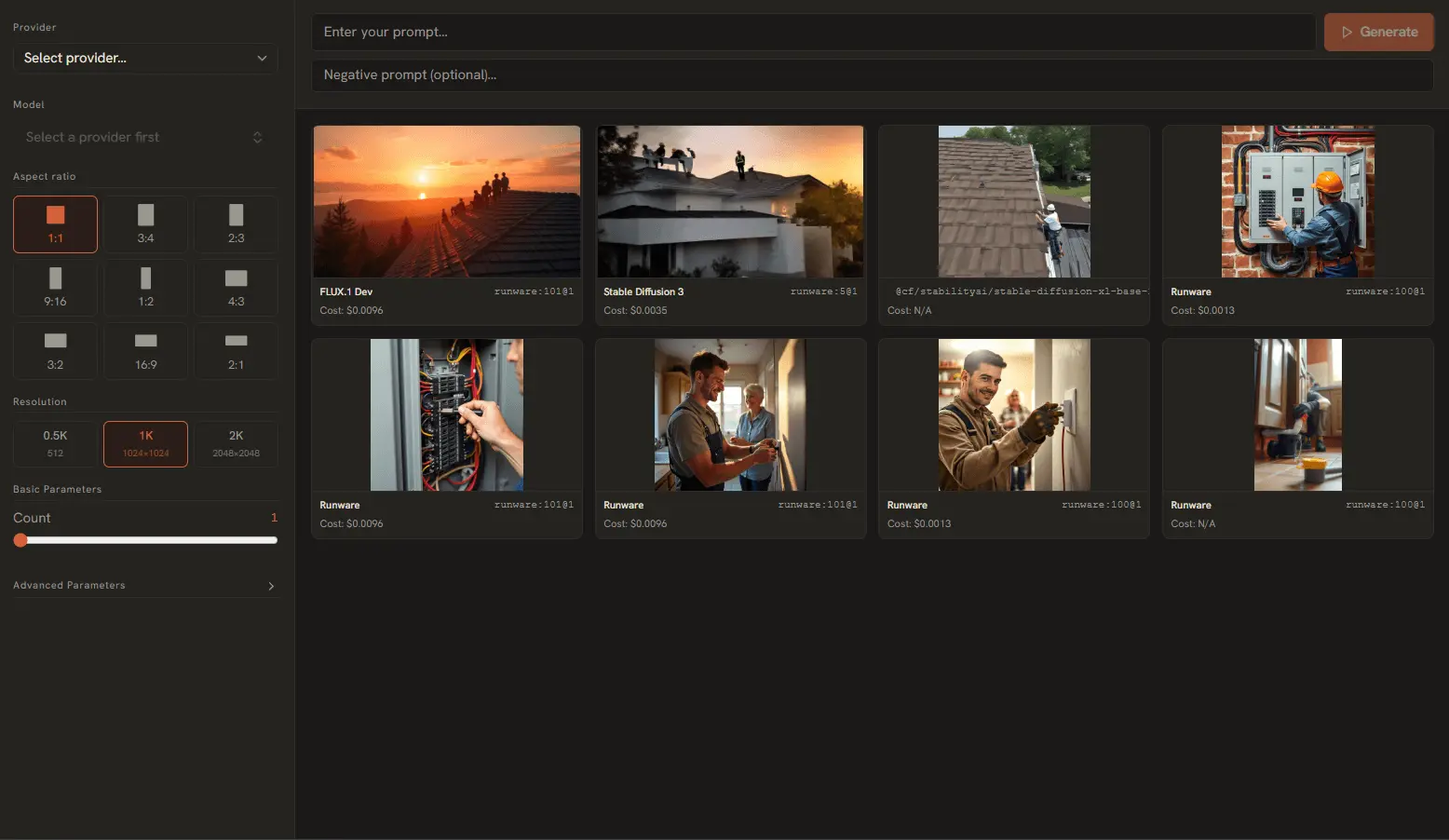
AI Playground brings powerful image generation capabilities to your desktop. Connect to cloud providers like Runware and OpenAI to generate images from text prompts, with full control over aspect ratios, styles, and advanced diffusion parameters.
Supported Providers
AI Playground supports two image generation providers, each with different strengths:
Runware
- Specializes in Stable Diffusion 3 and FLUX models. Sub-second inference, very cost-effective. Supports negative prompts and all advanced parameters.
- Best for: high-quality artistic images, fast iteration, fine control
OpenAI GPT-Image 2
- DALL·E 3 based. Excellent prompt adherence, great for structural and compositional prompts. Limited advanced parameter control compared to Runware.
- Best for: photorealistic scenes, strict prompt following, professional use
Writing Effective Prompts
The quality of your generated image depends heavily on your prompt. A well-structured prompt includes:
- Subject: What is the main focus? (e.g., "a cat wearing a spacesuit")
- Medium & Style: What style? (e.g., "digital art", "oil painting", "photorealistic", "anime")
- Lighting & Color: Mood and atmosphere (e.g., "cinematic lighting", "neon colors", "golden hour")
- Composition: Framing and perspective (e.g., "close-up shot", "wide angle", "bird's eye view")
Example: "A majestic wolf howling at a full moon, digital art, cinematic lighting, vibrant colors, wide angle shot, highly detailed fur, starry night sky — style of Studio Ghibli"
Core Image Controls
These controls are available regardless of which provider you choose:
- Negative Prompts: Describe what you don't want in the image. Essential for fixing anatomy errors:
"deformed, extra fingers, blurry, bad anatomy" - Aspect Ratios: Choose from presets like 16:9 (landscape), 9:16 (portrait), 1:1 (square), 4:3, and 3:2. The app maps these to the nearest supported dimensions for your provider.
- N-Count: How many images to generate from a single prompt. Values from 1-8 depending on your provider's limits.
Advanced Engineering Parameters
When using Runware (or Cloudflare AI with Stable Diffusion models), toggle the Advanced Parameters accordion to access these controls:
Diffusion Steps (1-50)
- Controls how many denoising iterations the model performs. More steps = more detail but longer generation time. Recommended: 25-35 for most use cases. Beyond 40 yields diminishing returns.
CFG Scale (1.0-20.0)
- Classifier-Free Guidance scale. Higher values force the model to follow your prompt more strictly but can reduce image quality. Low values (4-7) produce more creative, aesthetic results. High values (12-20) stick rigidly to the prompt but may look artificial.
Seed Control
- A seed is a starting number that determines the initial noise pattern. Using the same seed + prompt + settings produces the same image. Use seeds to: reproduce good results, make incremental changes (change the prompt slightly while keeping the seed), or iterate on a composition.
Scheduler
- The noise scheduler determines how noise is removed during diffusion. Options include Euler, DPM++, DDIM, and LCM. For most users, the default scheduler works best. LCM schedulers are optimized for speed (fewer steps needed).
Batch Generation
Using the N-Count control effectively:
- Single image (N=1): Fastest, uses least credits. Use for iteration.
- Multiple images (N=4): Generates 4 variations with different seeds. Great for finding the best composition quickly.
- Cost note: Each image counts as a separate generation toward your API usage. Batch size multiplies the cost.
Download & Gallery
Images are automatically saved to your configured output directory (default: your Downloads/AI Playground Images folder).
- Each image is saved as a
.pngfile with a timestamp-based filename. - Gallery view in the app shows thumbnails of all generated images.
- Click any thumbnail to preview, copy, or open the file location.
- You can change the output directory in Settings → Directories & Environment.