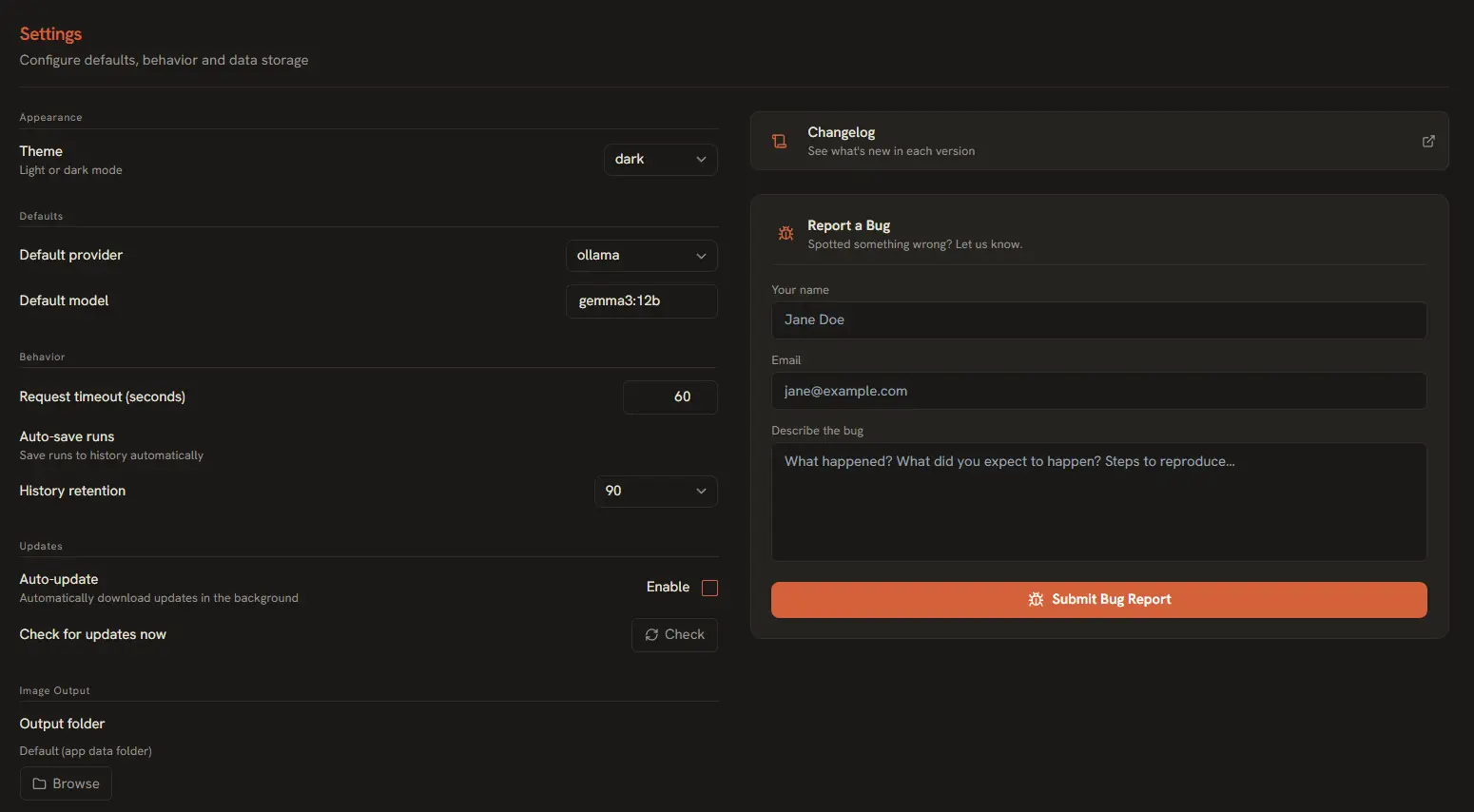
The Settings view (accessible from the gear icon at the bottom of the main sidebar) lets you customize every aspect of AI Playground — from visual appearance and default models to output directories and data management.
Appearance & Themes
AI Playground ships with a warm-neutral proprietary color scheme designed to reduce eye strain during long sessions. You can switch between two themes:
Theme Options
- Light — Clean, bright interface with dark text on light backgrounds. Best for well-lit environments.
- Dark — Full dark mode with light text on dark surfaces. Reduces glare in low-light settings.
To change the theme, open Settings > Appearance and select your preferred option from the theme dropdown. The change applies immediately with no restart required.
Language
AI Playground is fully translated into 6 languages. You can change the interface language at any time from Settings > Appearance > Language:
Supported Languages
- English — Default language.
- Español — Spanish.
- Français — French.
- Deutsch — German.
- Português (BR) — Brazilian Portuguese.
- 中文 — Simplified Chinese.
Every label, button, tooltip, placeholder, and error message updates instantly when you switch languages. No restart is required.
On first launch, the app auto-detects your OS language and prompts you to confirm. If your OS language isn't one of the 6 supported locales, it defaults to English. You can change it at any time from Settings.
Tip: Provider-specific strings (model names, API error messages) are returned as-is from the provider and are not translated.
Default Provider & Model
You can set a default AI provider and model that are pre-selected when you open a new chat session. This saves time if you primarily work with one provider.
- Default Provider — Choose from OpenAI, Gemini, Anthropic, OpenRouter, xAI Grok, or Ollama. This provider is auto-selected in the model picker.
- Default Model — Enter any model ID (e.g.,
gpt-4o,claude-sonnet-4-5). This model is auto-filled in the input field.
Behavior Settings
These options control how AI Playground handles requests, history, and timeouts:
Behavior Options
- Request Timeout — Set how long (in seconds) the app waits for a provider response before timing out. Range: 10–300 seconds. Default: 60 seconds.
- Auto-Save Runs — Toggle on/off to automatically save every inference run to your local history. Disable this if you only want to manually save specific runs.
- History Retention — Choose how long to keep run history: 30 days, 90 days, 180 days, or Forever. Older records are automatically cleaned up based on this setting.
Auto-Update
AI Playground uses Electron's native auto-updater to deliver new features and fixes. You can control update behavior in the Updates section:
- Auto-Update Toggle — Enable or disable automatic update checks. When enabled, the app checks for new versions on launch and notifies you when an update is available.
- Check for Updates Now — Click this button to manually check the release server for a new version. If an update is found, you can download and install it immediately.
Tip: Keep automatic updates enabled to receive security patches and new model support as soon as they are released.
Image Output Directory
Every image you generate is saved as a file to your local drive. By default, AI Playground saves images to a default location, but you can change this to any directory:
- Go to Settings > Image Output.
- Click the Browse button next to the output folder path.
- Navigate to your desired folder (e.g.,
C:/Users/YourName/Generations). - Click Select Folder. The new path appears in the settings field.
Click the Open button to open the output folder directly in your system's file manager.
All future image generations will be written directly to this folder. Existing files are not moved automatically — only new outputs use the updated path.
Data Management
Under the Data and Danger Zone sections, you can manage your local data:
- Open App Data Folder — Opens the Electron app data directory in your file manager. This is where the SQLite database and other app files are stored.
- Export All History — Downloads your complete run history as a JSON file (
ai-playground-history.json). Useful for backups or analysis. - Clear All History — Permanently deletes every saved run. A confirmation dialog appears before any data is removed. This action cannot be undone.
Tip: Export your history before clearing it if you want to keep a backup of your past runs and cost tracking data.
Keyboard Shortcuts
AI Playground includes a set of keyboard shortcuts to speed up common actions. View the full list at any time by pressing Ctrl+K (or Cmd+K on macOS) to open the command palette.
| Shortcut | Action |
|---|---|
| Ctrl+K | Open command palette / Quick search |
| Ctrl+Enter | Submit prompt (from the text input) |
| Ctrl+, | Open Settings |
Reporting Issues
Found a bug? You can report it directly from the app without switching to your browser:
- Go to Settings and scroll to the Report a Bug section on the right side.
- Enter your name and email.
- Describe the bug in the description field. Include steps to reproduce if possible.
- Click Submit Bug Report. The report is sent directly to the development team via a web form.
Tip: Include your app version and operating system in the bug description to help with diagnosis.