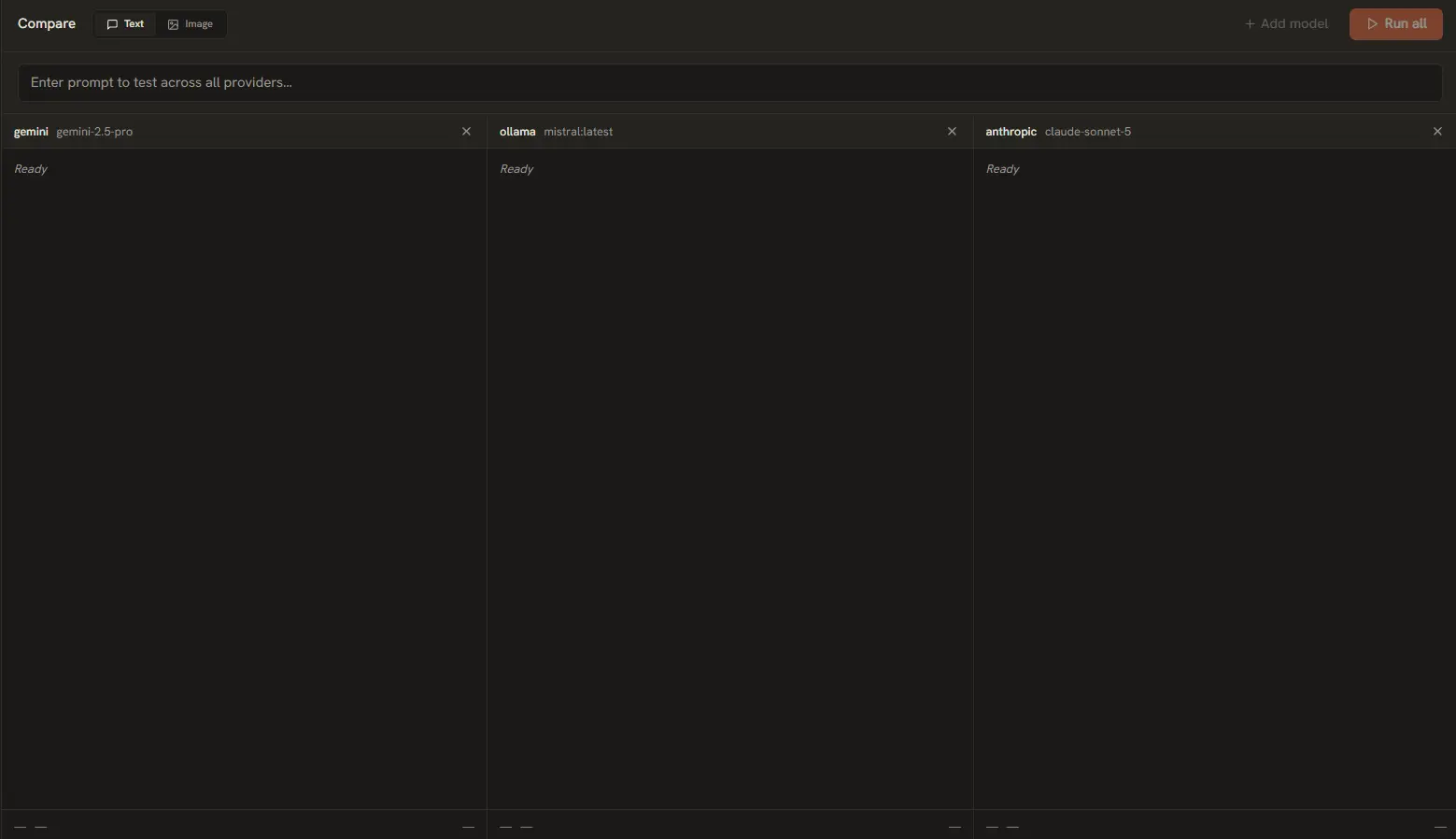
AI Playground's signature feature is the Compare interface. Instead of opening multiple browser tabs and running prompts one at a time, you can test models side-by-side in a single view. This is essential for cost optimization, quality benchmarking, and speed testing.
When to Use Comparison Mode
Comparison mode is ideal for answering these questions:
- Cost vs Quality: Is GPT-4o worth 10x the price of Gemini 2.0 Flash for my specific task?
- Speed: Which model responds fastest for real-time applications?
- Output Format: Does Claude format JSON better than GPT? Does Gemini follow system prompts more strictly?
- Model Selection: Which open-source model via Ollama performs closest to a paid cloud model?
Setting Up a Comparison
Follow these steps to run your first comparison:
- Click the Compare icon in the left sidebar (the dual-column icon).
- Choose between Text or Image mode using the top-right toggle.
- Click + Add Model Column to add a column. You can add up to 3 columns.
- In each column, configure: the Provider (e.g., OpenAI, Anthropic, Google), the Model (e.g., gpt-4o, claude-3.5-sonnet, gemini-2.0-flash), and individual parameters (Temperature, Max Tokens, etc.) per column.
- Type your prompt in the shared input box at the bottom.
- Click Run to send the prompt to all columns simultaneously.
Tip: Set each column to the same Temperature and Max Tokens for a fair comparison. Vary parameters deliberately only when testing specific configurations.
Reading the Results
After all columns finish generating, three metrics appear below each response:
Response Latency (ms)
- Time-to-first-token. Lower is better for real-time chat. Shows you which provider/model combination responds fastest over the wire.
Cost Analysis
- Exact cost of each response based on the live pricing catalog. Shows per-1,000-token rates and total cost for the specific input/output token counts.
Quality Assessment
- Visual indicators for output structure — format compliance, response length, and whether the model followed instructions faithfully.
Saving Comparison Configurations
Found a winning combination? You can save your comparison setup to reuse later:
- Configure your columns with the desired providers, models, and parameters.
- Click the Save Config button at the top of the Compare view.
- Give it a name (e.g., "GPT-4o vs Claude vs Gemini — Code Generation").
- Saved configs appear in the Saved Comparisons dropdown for one-click reloading.
Multi-Round Comparison
You can run multiple prompts within the same comparison session. Each round's results are preserved in the column history, letting you compare how different models respond to a series of related prompts. Use this for testing conversational consistency, instruction following across multiple turns, or iterative prompt refinement.