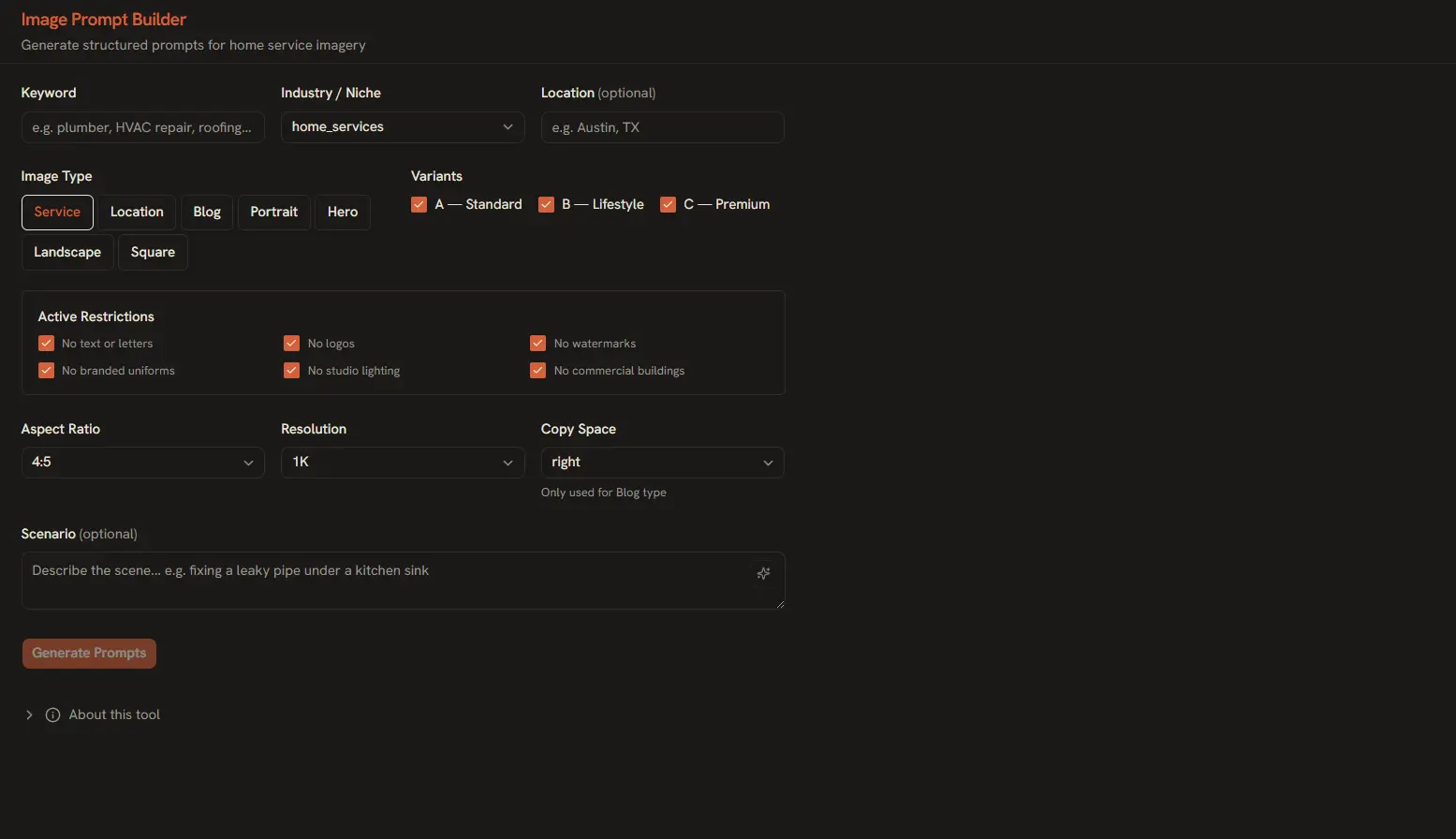
Writing complex generative prompts is not always intuitive, especially when you need to pack system instructions, formatting constraints, examples, and output rules into a single text block. AI Playground's Tools section features two dedicated builders that map structured inputs to prompt-engineering best practices — no manual formatting required.
Accessing the Prompt Builders
The Prompt Builders are located in the Tools section of the sidebar. Click the tools icon (wrench/gear icon) to open the tools panel, then select either Text Prompt Builder or Image Prompt Builder from the tab bar.
Each builder presents a form with labeled fields corresponding to prompt-engineering best practices. Fill in the fields you need — optional fields can be left blank — and click Generate Prompt to assemble the structured output.
Text Prompt Builder
The Text Prompt Builder helps you craft detailed text-generation prompts with proper structure. It is especially useful for complex tasks like code generation, content writing, data extraction, and multi-step reasoning.
Available Fields
- System Instruction — Define the model's role, personality, and behavior constraints. Example: "You are a senior software engineer reviewing pull requests. Be concise and focus on security."
- Context / Background — Provide relevant information the model should reference in its response. Example: "The project uses React 18 with TypeScript and follows the atomic design pattern."
- Examples (Few-shot) — Add one or more input/output pairs to demonstrate the desired format. This dramatically improves output consistency for structured tasks.
- User Prompt — The primary instruction or question. This is the only required field.
- Output Format Rules — Specify constraints like JSON schema, markdown structure, heading levels, or maximum length.
Working with System Instructions
The System Instruction field sets the stage for the entire conversation. A well-written system prompt can dramatically improve output quality. Here are examples for different use cases:
| Use Case | Example System Instruction |
|---|---|
| Code Review | "You are a senior engineer. Review code for correctness, performance, and security. Suggest improvements." |
| Creative Writing | "You are a novelist writing in the style of Ernest Hemingway. Use short sentences and vivid imagery." |
| Data Extraction | "Extract structured data from the provided text. Return only valid JSON with no additional commentary." |
| Tutorial Mode | "You are a patient tutor. Explain concepts step by step. Assume the user is a beginner. Use analogies." |
Using Few-shot Examples
Adding examples (few-shot prompting) tells the model exactly what you want. For instance, if you need the model to classify customer feedback into categories, include a couple of labeled examples:
Input:  "The battery drains way too fast after the latest update."
Output: {"category": "bug", "sentiment": "negative", "priority": "high"}

Input:  "Love the new dark mode! Makes working at night so much easier."
Output: {"category": "feature", "sentiment": "positive", "priority": "low"}
The model uses these examples to infer the pattern and apply it to new inputs consistently.
Image Prompt Builder
The Image Prompt Builder breaks down a great image prompt into its core components. Instead of writing a single long sentence, you fill in structured fields that the builder assembles into a detailed, optimized prompt for the image generation model.
Available Fields
- Subject — What is the main focus of the image? Be specific. Example: "A fluffy Samoyed puppy wearing a tiny detective hat and trench coat."
- Style / Medium — The artistic style or medium. Options: photorealistic, oil painting, watercolor, 3D render, pixel art, sketch, cinematic, anime, etc.
- Lighting & Mood — The atmosphere and lighting conditions. Example: "Cinematic golden hour lighting, warm glow, moody shadows, soft diffusion."
- Color Palette — The dominant colors or color scheme. Example: "Warm amber and teal contrast, desaturated background, vibrant subject."
- Composition — Camera angle and framing. Example: "Close-up shot, shallow depth of field, rule of thirds, subject slightly off-center."
- Negative Prompt — Elements you explicitly want to exclude. Example: "blurry, low quality, distorted face, extra limbs, text, watermark, signature."
Crafting Effective Image Prompts
The quality of an image generation prompt depends on specificity and structure. Here is how the builder's fields translate into a complete prompt:
[Subject] A fluffy Samoyed puppy wearing a tiny detective hat and trench coat
[Style] Photorealistic, hyper-detailed, 8K
[Lighting] Cinematic golden hour lighting, warm glow, soft shadows
[Colors] Warm amber tones with teal accents, rich saturation
[Composition] Close-up portrait, shallow depth of field, rule of thirds
[Negative] blurry, low quality, distorted face, extra limbs, text, watermark

→ Assembled: "Photorealistic close-up portrait of a fluffy Samoyed puppy
wearing a tiny detective hat and trench coat. Cinematic golden hour
lighting, warm amber and teal tones, rich saturation, shallow depth
of field, rule of thirds composition. Hyper-detailed, 8K. --
blurry, low quality, distorted face, extra limbs, text, watermark"
Tip: The Negative Prompt is just as important as the positive prompt. Always include terms like "blurry", "low quality", and "extra limbs" to avoid common image generation artifacts.
Generate & Send Workflow
Once you have filled in the fields in either builder, follow these steps:
- Click Generate Prompt — The builder assembles your fields into a structured, optimized prompt string.
- Review the generated prompt in the preview panel. You can make manual tweaks if needed.
- Click Send to Playground — the prompt is teleported directly into the Text Generation or Image Generation view, bypassing the need to copy-paste.
- Alternatively, click Copy to Clipboard to use the prompt elsewhere.
- Click Save to Library to persist the configuration for future use (see the Prompt Library tutorial).
The Send to Playground action passes the entire structured payload — including system instructions, examples, output format rules, and negative prompts — through the app's internal memory bus, so no data is lost in transit.
Best Practices
- Be specific — Vague prompts produce vague results. Include details about tone, format, constraints, and style.
- Use the System Instruction — Even for simple tasks, a clear system instruction improves consistency across multiple generations.
- Iterate — Generate, review, refine. Small tweaks to phrasing can produce dramatically different results.
- Save your best prompts — When you find a configuration that works, save it to the Prompt Library so you can reuse it instantly.
- Test across models — A prompt that works well with GPT-4o may behave differently with Claude or Gemini. Use the Compare feature to test.