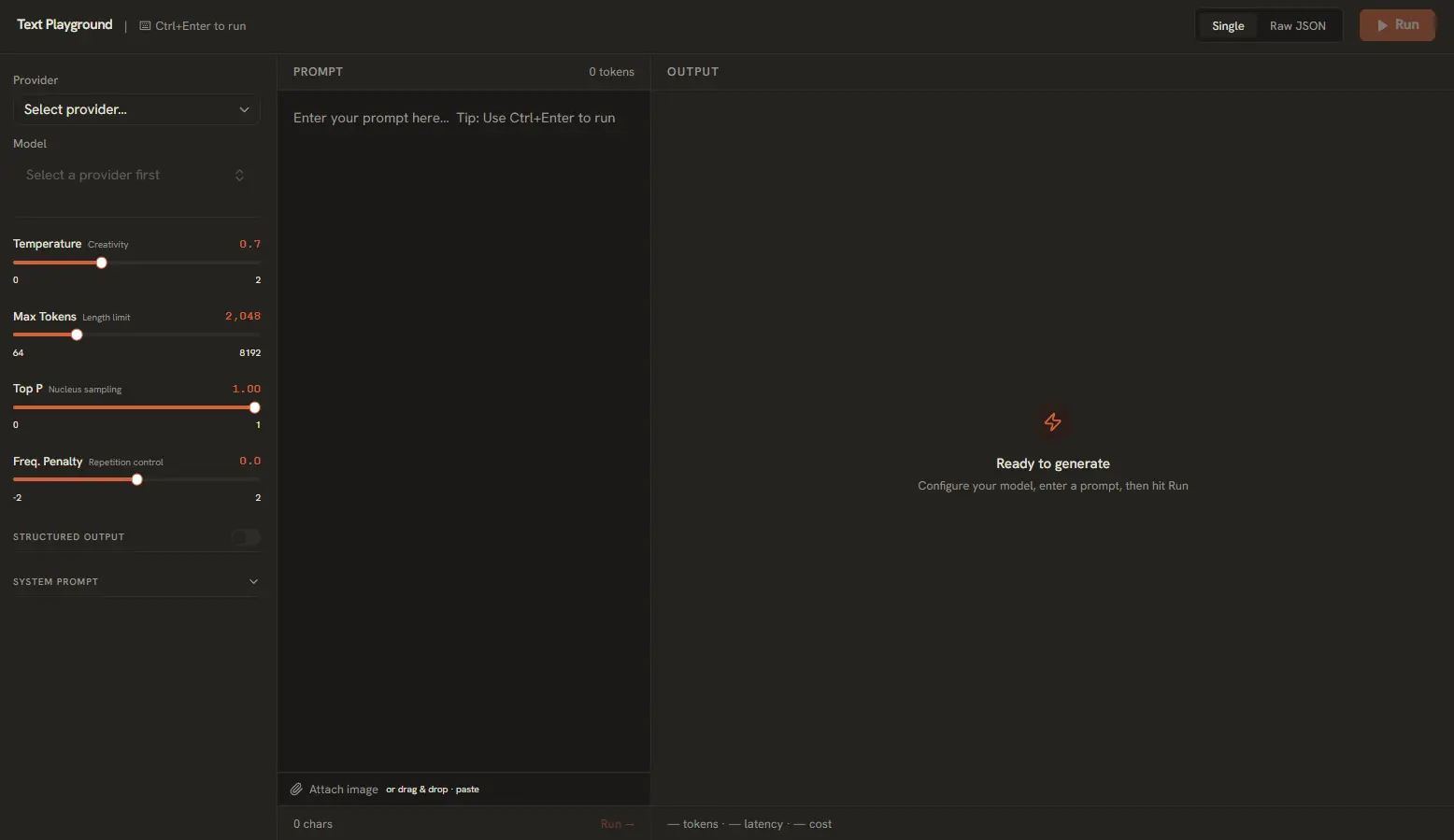
The Text Generator is the primary tool within AI Playground. It unifies dozens of models from different providers under a single, consistent interface. Whether you're using OpenAI's GPT-4o, Anthropic's Claude 3.5, Google's Gemini, or a local Ollama model, the experience remains the same.
Persistent Multi-Turn Chat
By default, the chat interface supports persistent multi-turn conversations. Each message you send retains the full context of everything said before — much like ChatGPT or Claude on the web.
Chat Controls:
- New Chat: Starts a fresh conversation, clearing the message history.
- Stop: Halts a response mid-stream. Useful if the model is going off-track.
- Retry: Regenerates the last response with a new random seed.
- Copy: Copies the last response to your clipboard.
- Delete: Removes individual messages from the conversation.
Chat History Management
All your conversations are automatically saved locally. You can access them through the History Drawer in the left sidebar.
- Browse: Click the History icon to see a list of all past conversations, sorted by date.
- Rename: Click the pencil icon on any conversation to give it a custom name.
- Resume: Click any past conversation to load it and continue where you left off.
- Delete: Remove old conversations you no longer need.
You can also switch models mid-conversation — change the provider or model in the top dropdown at any time without losing the chat history.
System Prompts
A system prompt is a set of foundational instructions that controls the model's behavior before it sees your messages. You can toggle the system prompt field by clicking the System Prompt switch above the parameter controls.
"You are an expert Python engineer. Provide only raw markdown code snippets without pleasantries."
System prompts are ideal for:
- Role setting: "You are a professional copy editor."
- Output formatting: "Always respond in JSON format with keys: answer, confidence, sources."
- Behavioral constraints: "Never mention that you are an AI. Keep responses under 100 words."
- Persona injection: "You are Socrates. Answer every question with another question."
Tuning the Parameters
The configuration side-panel gives you fine-grained control over how the model generates text. These parameters apply to the current chat session only.
Temperature (0.0 - 2.0)
- Controls randomness. Lower values (0.1-0.3) produce focused, deterministic outputs — ideal for code, math, and data extraction. Higher values (1.0-2.0) increase creativity and variety, useful for brainstorming and creative writing.
Top-P (0.0 - 1.0)
- Nucleus sampling. A value of 0.1 means only the top 10% most likely tokens are considered. Lower values make output more focused. Best practice: adjust Temperature or Top-P, not both simultaneously.
Max Tokens
- The maximum length of the generated response. Counts both input and output tokens. Useful for keeping API costs predictable and preventing overly long responses.
Frequency Penalty (0.0 - 2.0)
- Penalizes the model for repeating the same words or phrases. Higher values reduce repetition and encourage more varied vocabulary. Set to 0.5-1.0 for technical writing where repetition is common.
Stop Sequences
Stop sequences tell the model when to stop generating. You can specify one or more sequences in the parameters panel:
- Single sequence: Enter a string like
\n\nto stop at double newlines. - Multiple sequences: Separate multiple stop words with commas:
<|end|>, <|stop|>. - Use case: Stop sequences are essential for structured outputs like JSON, XML, or code generation where you need precision.
Streaming vs Non-Streaming
AI Playground supports two modes of response delivery:
- Streaming (default): The response appears token-by-token as it's generated. You see results immediately and can stop mid-response if needed. Best for interactive use.
- Non-Streaming: The full response is returned at once after generation completes. You see nothing until the entire response is ready. Useful for automated workflows or when you need the complete output.
Exporting Responses
Each response can be exported in multiple formats using the export menu (the download icon on any response):
- Copy as Markdown: Copies the response with full markdown formatting preserved.
- Copy as Plain Text: Strips all formatting for clean text pasting.
- Copy as JSON: Exports the raw response object including role, content, token counts, and timing metadata.