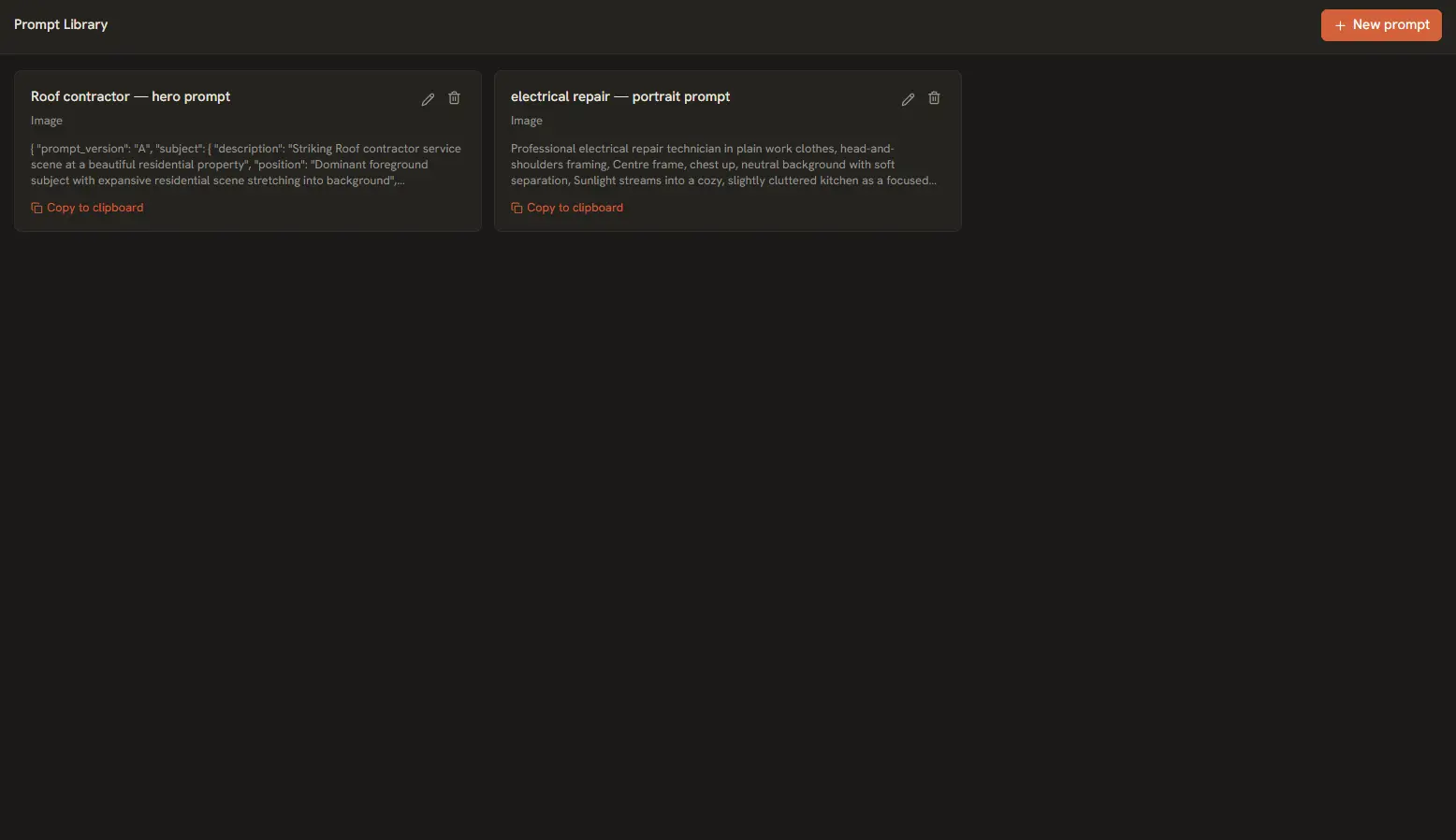
AI Playground includes a full prompt management system — a library to save and organize your best prompts, and a run history that tracks every inference for cost and performance auditing. For guidance on building prompts using the Text and Image Prompt Builders, see the Prompt Builder Tools tutorial.
The Prompt Library
Your finely crafted prompts do not have to fade into the void. Saving a prompt permanently caches it in your local SQLite database, organized by type and tags for instant retrieval.
Saving a Prompt
- Use either the Text Prompt Builder or Image Prompt Builder to construct your prompt.
- Click the Save to Library button.
- Give your prompt a descriptive Name (e.g., "JSON Code Generator — Strict Schema").
- Optionally assign Tags for filtering (e.g., "code", "json", "production").
- Select the Type — Text or Image — so it appears in the correct library view.
Managing Your Library
The Library view (accessible from the sidebar) displays all saved prompts in a sortable, filterable grid:
- Filter by Type: Toggle between Text and Image prompts using the tab bar at the top.
- Search: Type in the search bar to filter prompts by name or tag.
- Copy to Clipboard: Click the copy icon on any prompt to copy its full text instantly.
- Edit: Open any saved prompt in the Builder to modify its fields, then re-save.
- Delete: Remove prompts you no longer need with the trash icon.
- Send to Playground: Load a saved prompt directly into the generator with a single click.
Tip: Use tags consistently (e.g., "blog", "code", "creative", "prod"). Consistent tagging makes it much easier to find prompts when your library grows to hundreds of entries.
Run History & Analytics
Every inference you run is logged locally in the SQLite database. The History panel gives you full visibility into your usage patterns, costs, and performance metrics.
What Gets Tracked
- Input Text — The exact prompt or messages sent.
- Output Text — The model's complete response.
- Model & Provider — Which model and provider handled the request.
- Token Counts — Input tokens, output tokens, and total tokens consumed.
- Latency — Time-to-first-token and total generation time in milliseconds.
- Cost — Exact cost per request, calculated from the live pricing catalog.
- Timestamp — When the request was made.
Viewing History
- Click History in the sidebar.
- Browse the chronological list of all your runs. Each entry shows the model used, token count, cost, and a snippet of the prompt.
- Click any entry to expand it and view the full input/output pair.
Exporting to CSV
If you need to perform spreadsheet analysis, track spending across months, or share usage reports, export your history:
- Open the History panel.
- Click the Export to CSV button in the top-right.
- Choose a save location on your machine.
- The CSV will contain all tracked fields: timestamp, provider, model, prompt, response, tokens, latency, and cost.
You can open the CSV in Excel, Google Sheets, or any data analysis tool to create pivot tables, spending charts, or performance comparisons across models.
Clearing Data
If you want to start fresh — clear all saved prompts and run history — go to Settings > Advanced and click Clear All Local Data. This resets the SQLite database without affecting your API key configurations or app settings.