AI Playground is a bridge between your computer and the world's most powerful AI models. To use those models, you need to connect to providers via API keys. This guide walks you through every provider, how to get your keys, and how to set them up correctly.
Privacy Note: All API keys you input are stored strictly within the app's local SQLite database on your machine. They are never sent to our servers or logged anywhere outside the app.
Accessing the API Keys Panel
All provider management happens in one place:
- Open AI Playground.
- Click the API Keys / Providers icon in the left sidebar (the key icon).
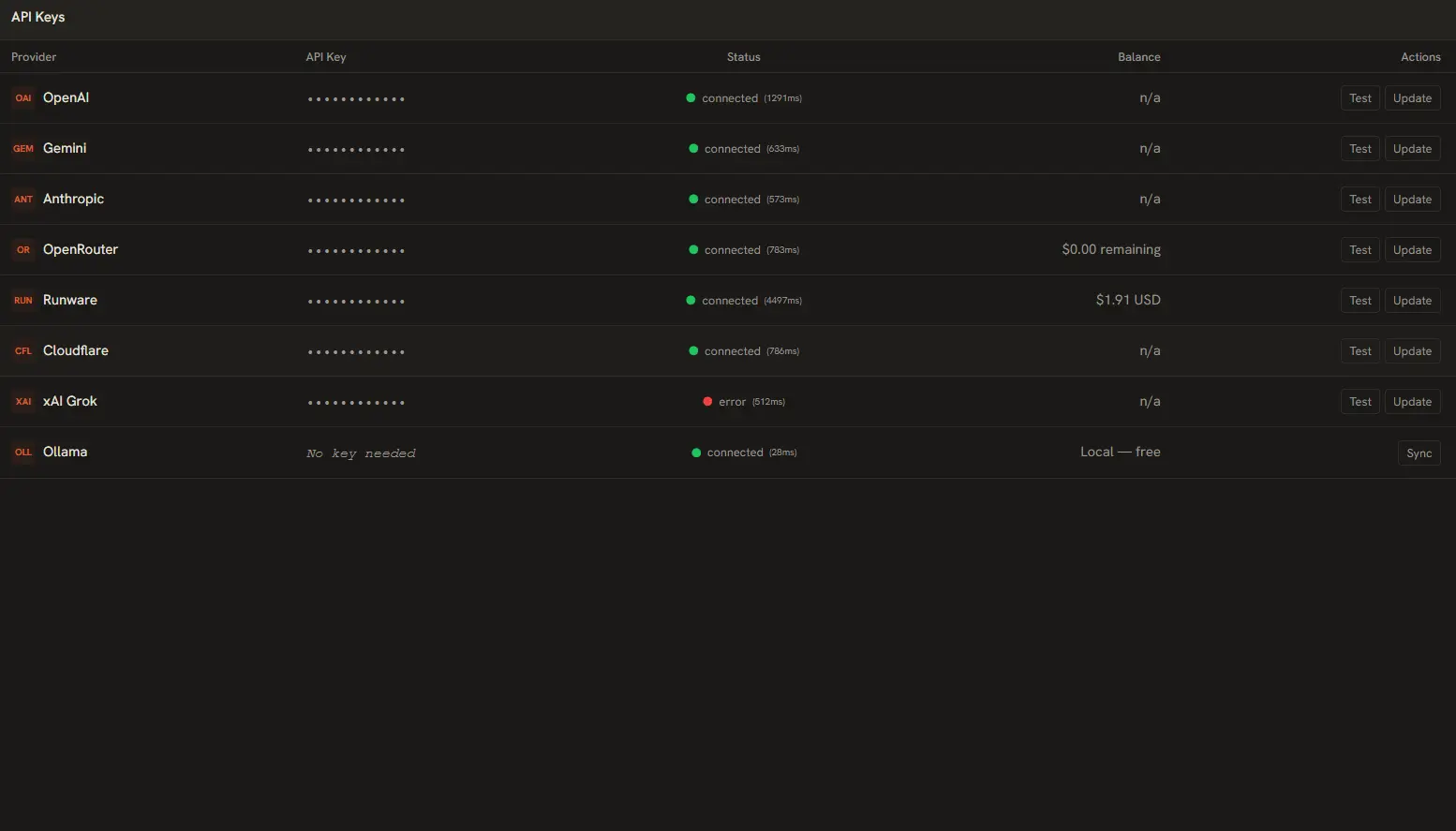
- You'll see a list of all supported providers, each with an input field and a Test button.
Provider-by-Provider Setup
OpenAI
- Provides GPT-4o, GPT-4o-mini, GPT-4, GPT-3.5-Turbo, and more. Best for general-purpose text generation, code, and reasoning.
- 1. Go to platform.openai.com/api-keys ↗ and sign in or create an account.
- 2. Click Create new secret key.
- 3. Give it a name (e.g., "AI Playground") and copy the generated key.
- 4. Paste it into the OpenAI field in AI Playground and click Test.
Anthropic
- Provides Claude 3.5 Sonnet, Claude 3 Opus, Claude 3 Haiku. Excellent for long-form writing, analysis, and nuanced dialogue.
- 1. Go to console.anthropic.com ↗ and create an account.
- 2. Navigate to API Keys in the left menu.
- 3. Click Create API Key.
- 4. Copy the key (starts with
sk-ant-) and paste it into the Anthropic field. - 5. Click Test to verify.
Google Gemini
- Provides Gemini 2.0 Flash, Gemini 1.5 Pro, and Gemini 1.5 Flash. Fast and cost-effective with a generous free tier.
- 1. Go to aistudio.google.com/apikey ↗.
- 2. Sign in with your Google account.
- 3. Click Create API Key.
- 4. Copy the key and paste it into the Gemini field in AI Playground.
- 5. Click Test to confirm the connection.
Cloudflare Workers AI
- Provides access to open-source models running on Cloudflare's global network. Requires both an API Token and Account ID.
- 1. Go to dash.cloudflare.com/profile/api-tokens ↗.
- 2. Click Create Token and use the Workers AI template.
- 3. Copy the generated token.
- 4. Find your Account ID from the Cloudflare dashboard overview page.
- 5. In AI Playground, enter them in the Cloudflare field using this format:
API_TOKEN:ACCOUNT_ID - 6. Click Test to verify.
Runware
- Provides image generation via Stable Diffusion 3 and FLUX models. Known for sub-second inference speeds.
- 1. Go to runware.ai ↗ and create an account.
- 2. Navigate to the API section in your dashboard.
- 3. Copy your API key.
- 4. Paste it into the Runware field in AI Playground and click Test.
OpenRouter
- A unified API gateway to hundreds of models from dozens of providers. Pay one bill, access everything.
- 1. Go to openrouter.ai/keys ↗ and sign in.
- 2. Click Create Key.
- 3. Copy the key and paste it into the OpenRouter field.
- 4. Click Test. OpenRouter gives you access to models from Meta, Mistral, Google, and more through a single integration.
AI/ML
- Provides access to 100+ models from OpenAI, Anthropic, Google, Meta, and more through a unified API with pay-per-token billing. Also supports image generation.
- 1. Go to aimlapi.com ↗ and create an account.
- 2. Navigate to API Keys in your dashboard.
- 3. Copy your API key.
- 4. Paste it into the AI/ML field in AI Playground and click Test.
NVIDIA
- Enterprise-grade AI inference platform with 55+ models including Llama, Mistral, Stable Diffusion, and NVIDIA's own models. Free tier with rate limits.
- 1. Go to build.nvidia.com ↗ and create an account.
- 2. Navigate to your API Keys section.
- 3. Generate and copy an API key.
- 4. Paste it into the NVIDIA field and click Test.
Hugging Face
- Access open-source models from the Hugging Face ecosystem — DeepSeek, Llama, Qwen, Mistral, Gemma, and many more via the Inference API router.
- 1. Go to huggingface.co/settings/tokens ↗ and sign in.
- 2. Click Create new token.
- 3. Select a name and click Generate.
- 4. Copy the token and paste it into the Hugging Face field.
- 5. Click Test to verify the connection.
Setting up Ollama (Local AI)
Ollama is the only provider that doesn't need an API key. It runs entirely on your machine for free.
- Download and install Ollama ↗ for your platform.
- Open a terminal (Command Prompt, Terminal, or PowerShell) and pull a model:
ollama pull llama3.2 - Ensure the Ollama background service is running (you'll see it in your system tray / menu bar).
- Open AI Playground. The Ollama card in the Dashboard should auto-detect and turn green automatically.
AI Playground queries Ollama at http://127.0.0.1:11434 by default. Popular local models include llama3.2, mistral, codellama, and phi3.
Testing & Verifying Connections
After entering a key, always click the Test button beside the input field. The app will send a lightweight authentication request to the provider and report the result:
- Green dot: Connection successful. The provider is ready to use.
- Red dot: Connection failed. Double-check the key for typos, leading/trailing spaces, or expiry.
- Yellow dot (Ollama only): Ollama process is not running. Start the Ollama background service.
Editing & Removing Keys
To update or remove a provider key:
- Go to the API Keys / Providers panel.
- To replace a key: clear the field and paste the new key, then click Test.
- To remove a key: click the trash icon next to the provider name and confirm the removal in the dialog.
Tip: If you rotate your API keys regularly (recommended for security), you can update them here at any time without reinstalling the app.
Understanding the Pricing Catalog
AI Playground fetches a live pricing catalog from OpenRouter and Runware every time the app starts. AI/ML API and NVIDIA NIM pricing is calculated from token usage with hardcoded rates for all known models.
When you run a prompt, the dashboard uses this catalog to estimate your spend in real time. The Spend Chart on the Dashboard tracks your daily and weekly costs across all hosted providers.
Local models via Ollama are completely free — they run on your hardware and incur no API charges.